prettyfolders.com
Generate beautiful custom folder icons for your Mac.
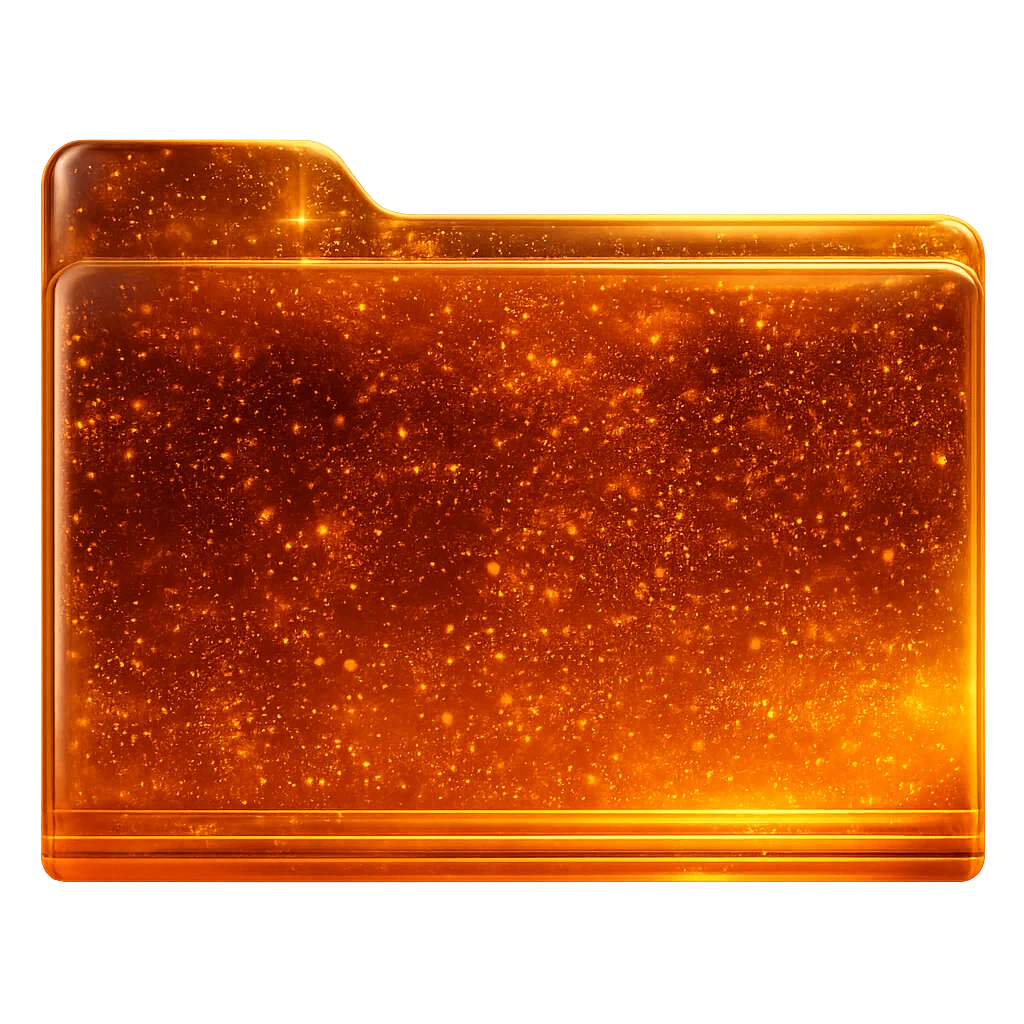


Elevate Your Workspace

How to Apply Your Custom Icon
1. Download Icon
Download your newly generated folder artwork as a PNG file using the button above.
2. Open Get Info
Right-click the folder you want to customize in Finder and select Get Info (or press ⌘I).
3. Apply Artwork
Drag the downloaded PNG file directly onto the small folder icon in the top-left corner of the Get Info window — or copy the image and press ⌘V to paste.
Explore Curated Styles
Download ready-to-use icons instantly, or use their prompts to bootstrap your own creations.
Cyberpunk Hologram
"Cyberpunk hologram folder with glowing neon circuit paths and digital stardust"
Wavy Blue Wood
"Wavy blue wood grain texture with a smooth, glossy satin finish"
Glacier Ice
"Crystalline glacier ice with frozen depth and cool blue light"
Dreamy Pink Cloud
"Dreamy pink clouds and diffuse light across the folder face"
Amber Resin
"Warm translucent amber resin with golden depth and a glassy glow"
Jade Stone
"Polished jade stone with mineral depth and a quiet sheen"
Holiday Velvet
"Red velvet holiday folder with pine branch wreath, candy cane, and gold ornament"
Spooky Pumpkin
"Spooky jack-o'-lantern carved pumpkin with a glowing warm interior light"
Thanksgiving Harvest
"Thanksgiving harvest folder with a roasted turkey, rich orange pumpkin, and autumn leaves"
Easter Eggs
"Pastel Easter folder with painted eggs, spring grass, white daisies, and soft morning light"
Veined White Marble
"Veined white marble, softly glossy and gallery-calm"
Fluffy Pug
"Fluffy pug fur around the tab: soft, warm, and a little silly"
Describe the folder style you want, add a pattern image if you have one, and get a macOS-ready PNG icon. Results vary—tweak your description or generate again if an icon misses the mark.This is an independent website for creating replacement folder icons for macOS. Apple and macOS are trademarks of Apple Inc.